> ## Documentation Index
> Fetch the complete documentation index at: https://help.withnutshell.com/llms.txt
> Use this file to discover all available pages before exploring further.
# Transcribe your first meeting
> Learn how to set up and use Tails to transcribe your first meeting
This guide assumes you have completed the installation process. If you
encounter any issues during installation, please refer to our
[FAQ](/getting-started/FAQ).
## Prerequisites
Before starting this guide:
* Complete the [Download and Installation](/getting-started/download-and-install) process
* If you encounter any issues during installation, refer to our [FAQ](/getting-started/FAQ)
## Start to finish: Transcription with Tails
For this example, we'll be using the live transcription settings (default) and demonstrating with Zoom. The process is the same for other meeting platforms.
Navigate to your system's sound settings
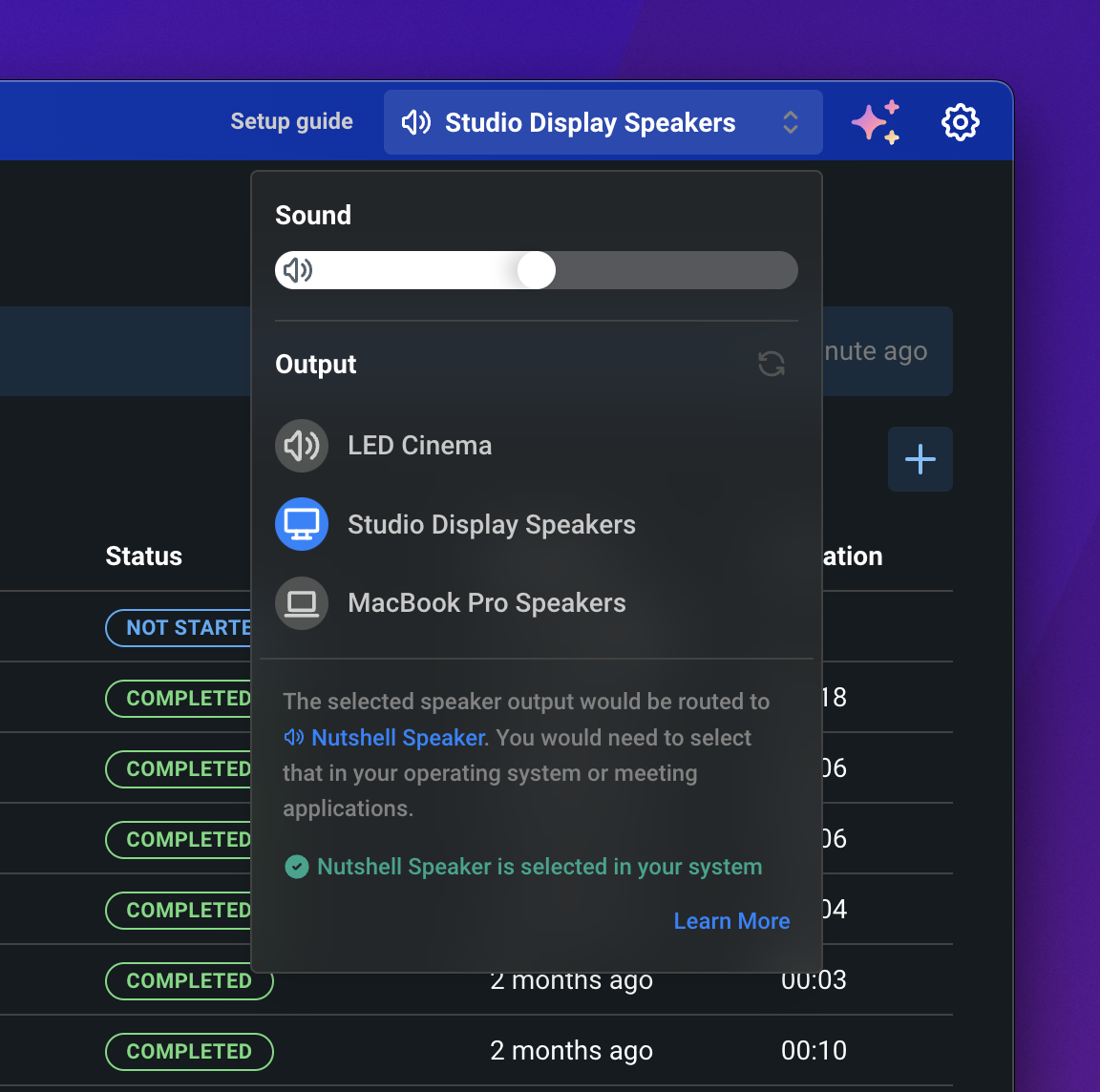
Choose "Nutshell Speaker" as your output device (This is created when Tails (formely Nutshell) is opened, if you don't see it, try closing and reopening Tails (formely Nutshell) desktop app)
 Tails will use your system's default microphone. You can change this in your system settings if needed.
At the top of the Tails app, use the dropdown menu to select which speaker device you want to use. If you're using headphones, connect them now.
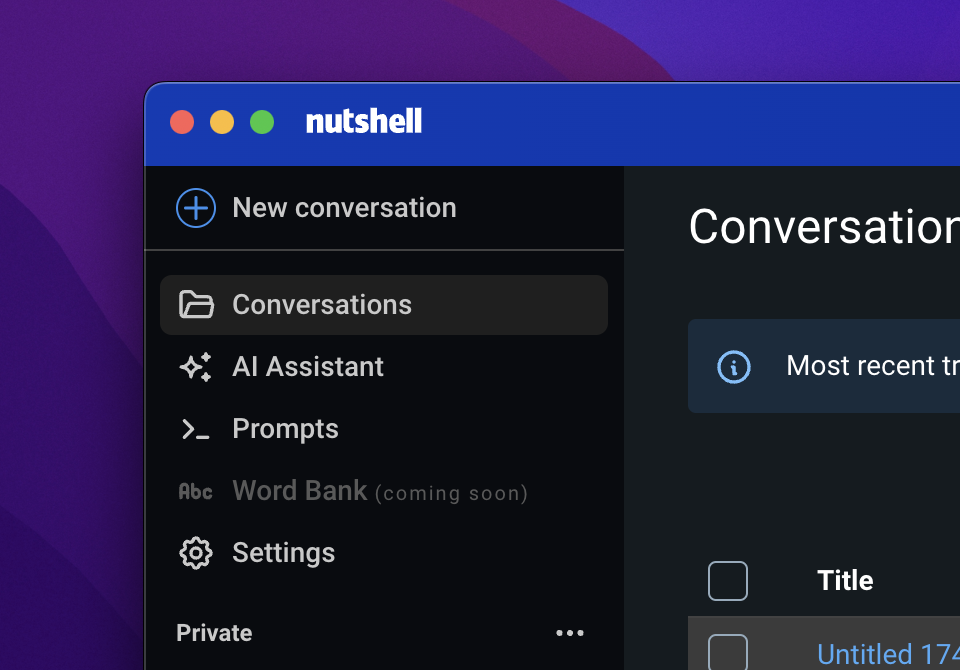
Look for the "New Conversation" button in the top left corner of the app
Tails will use your system's default microphone. You can change this in your system settings if needed.
At the top of the Tails app, use the dropdown menu to select which speaker device you want to use. If you're using headphones, connect them now.
Look for the "New Conversation" button in the top left corner of the app
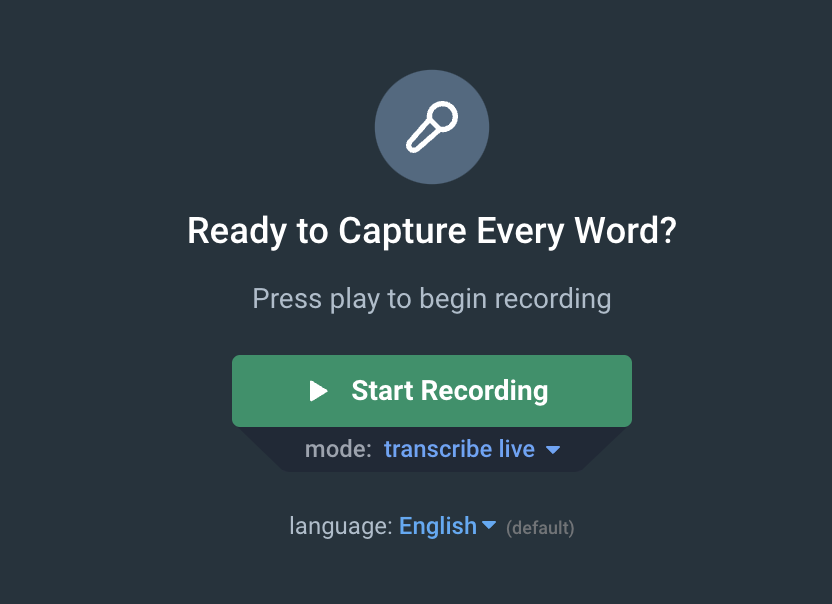
 Click the "Start Recording" button to begin transcription
 You can start recording even after your meeting has begun. The steps shown here demonstrate starting Tails before joining a meeting.
When joining Zoom, ensure "Nutshell Speaker" is selected as your audio output device. If Nutshell Speaker is set as your system's output device, Zoom will automatically use it.
For microphone, you can select whichever microphone you want to use.
The same process applies to other meeting platforms. Always ensure "Nutshell Speaker" is selected as the audio output device.
### Stopping the Transcription Session
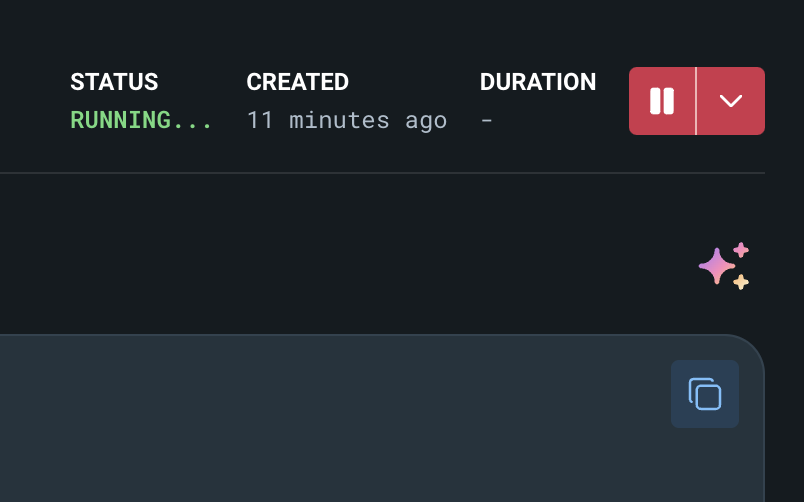
Click the pause button in the top right corner to stop the transcription session.
{" "}
You can start recording even after your meeting has begun. The steps shown here demonstrate starting Tails before joining a meeting.
When joining Zoom, ensure "Nutshell Speaker" is selected as your audio output device. If Nutshell Speaker is set as your system's output device, Zoom will automatically use it.
For microphone, you can select whichever microphone you want to use.
The same process applies to other meeting platforms. Always ensure "Nutshell Speaker" is selected as the audio output device.
### Stopping the Transcription Session
Click the pause button in the top right corner to stop the transcription session.
{" "}
 ### Reviewing and Editing
After stopping the recording, you can:
* Play back the recorded audio
* Review the transcription
* Re-run transcription if needed for better accuracy
You can re-run transcription multiple times on the same recording to improve accuracy or correct any issues.
## What to do next with your transcription
Learn how to create and customize AI prompts for different meeting types
Organize and manage your transcribed conversations effectively
Discover how to leverage the AI chatbot for meeting insights
### Reviewing and Editing
After stopping the recording, you can:
* Play back the recorded audio
* Review the transcription
* Re-run transcription if needed for better accuracy
You can re-run transcription multiple times on the same recording to improve accuracy or correct any issues.
## What to do next with your transcription
Learn how to create and customize AI prompts for different meeting types
Organize and manage your transcribed conversations effectively
Discover how to leverage the AI chatbot for meeting insights