> ## Documentation Index
> Fetch the complete documentation index at: https://help.withnutshell.com/llms.txt
> Use this file to discover all available pages before exploring further.
# Microphone setup
> Configure your preferred audio input device
## Default Microphone Selection
When you start a transcription, Tails automatically selects your system's
default microphone. To use a different microphone, follow the instructions
below to change your audio input device.
## Changing Your Default Microphone
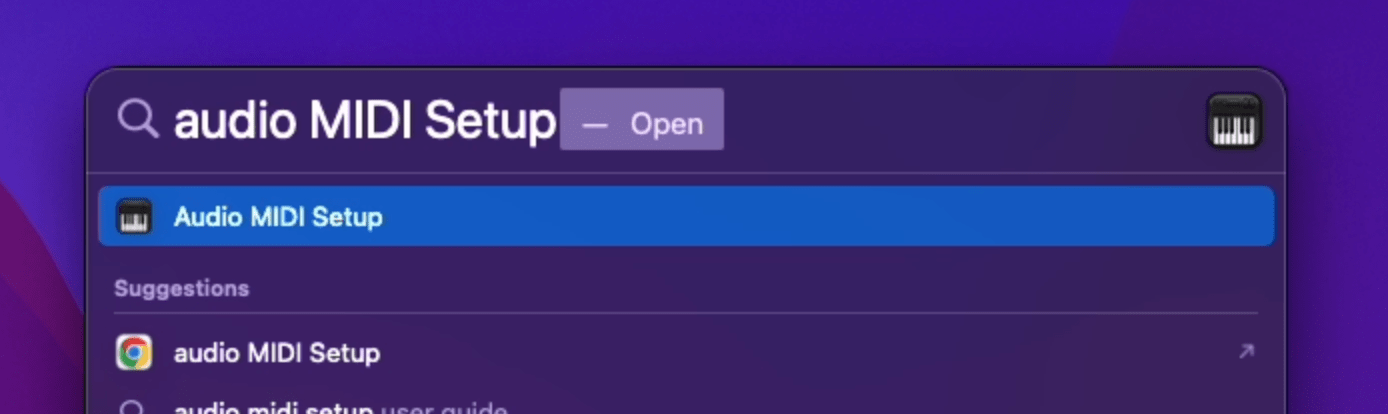
* `command` + `space` to open up Mac's spotlight search
* Type in `Audio
MIDI Setup` and open it up
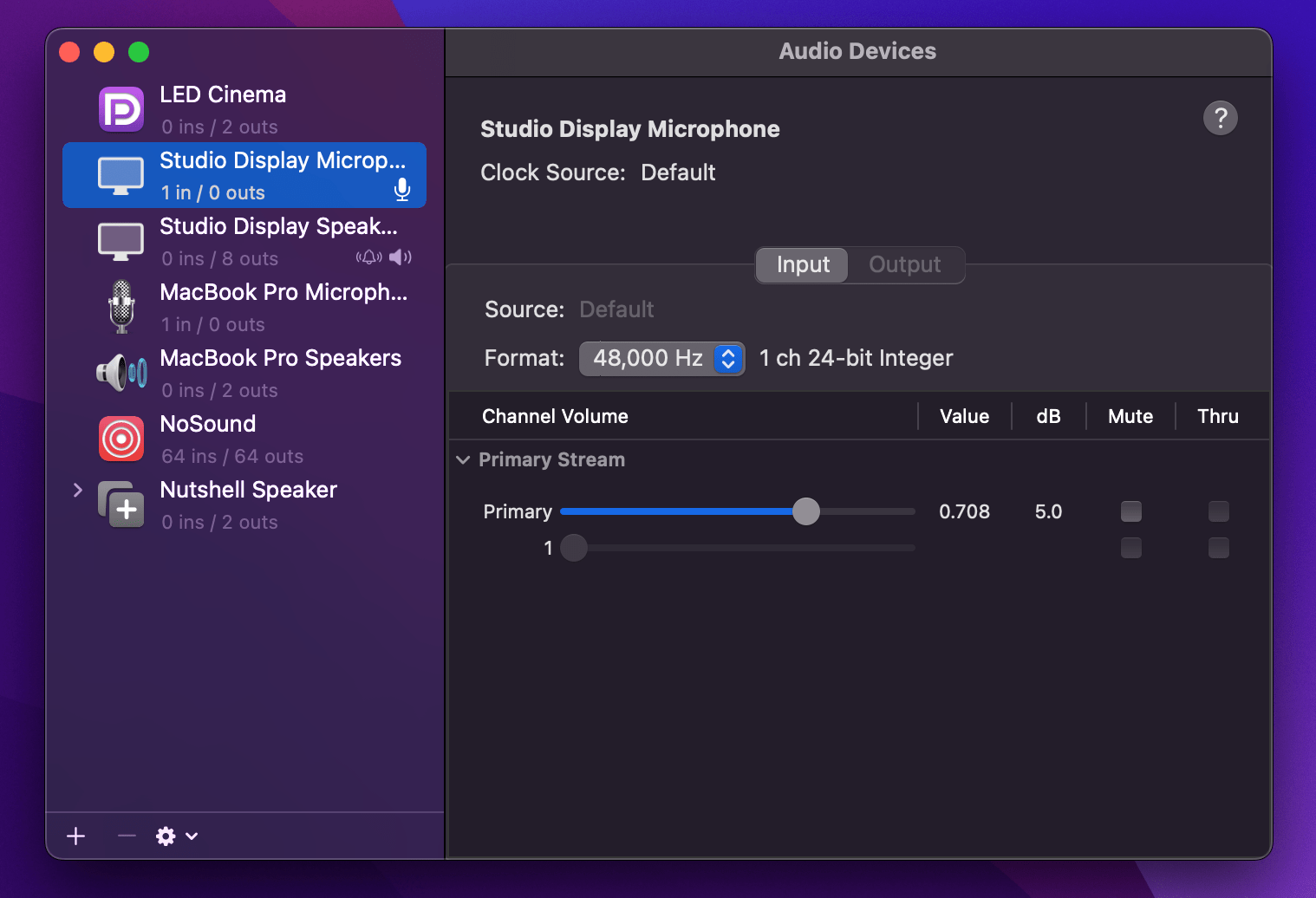
 The device marked with a microphone icon indicates your system's current default microphone. If this is your preferred microphone, you can skip the remaining steps.
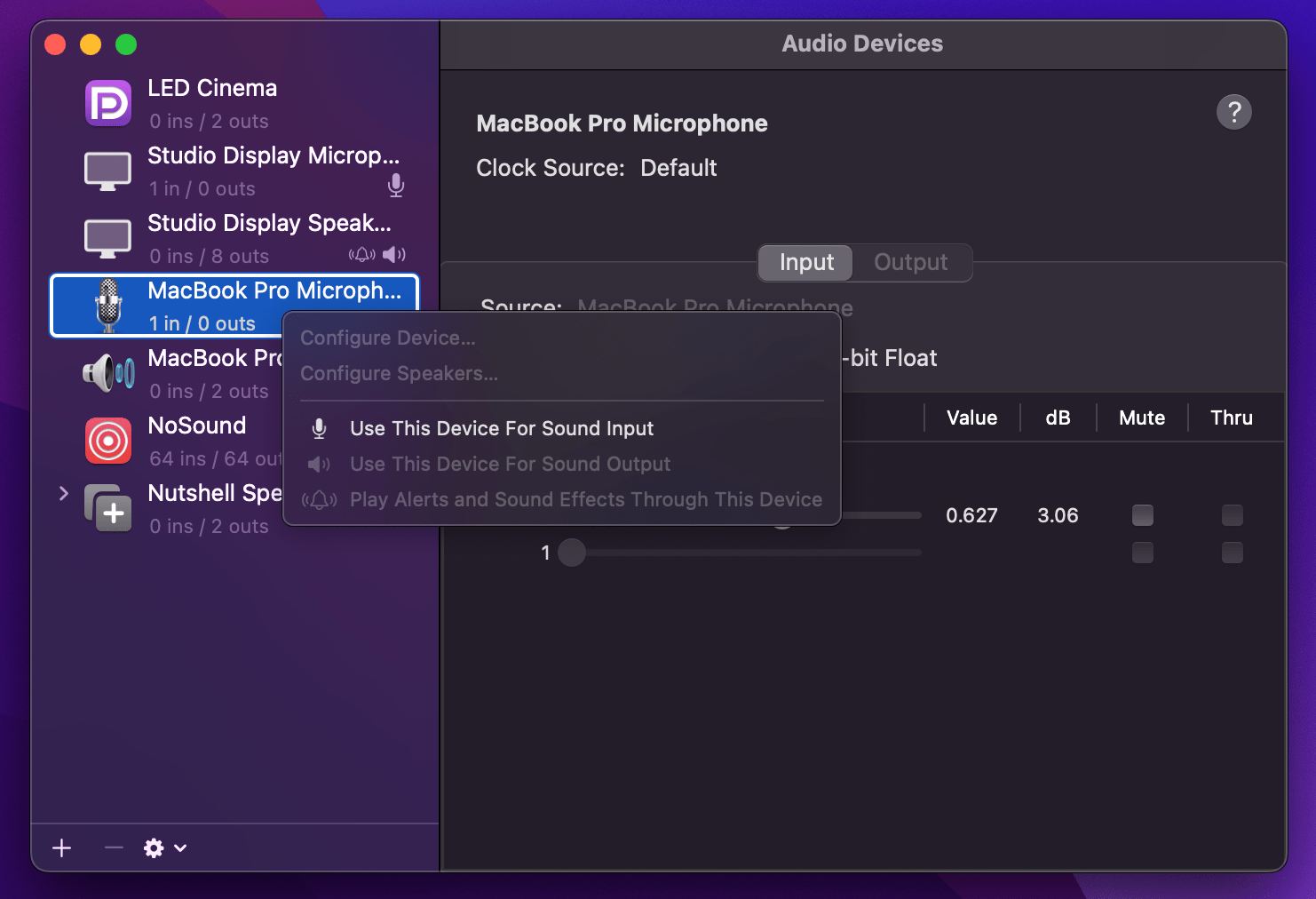
 Right click your preferred microphone and select `Use This Device for Sound Input`
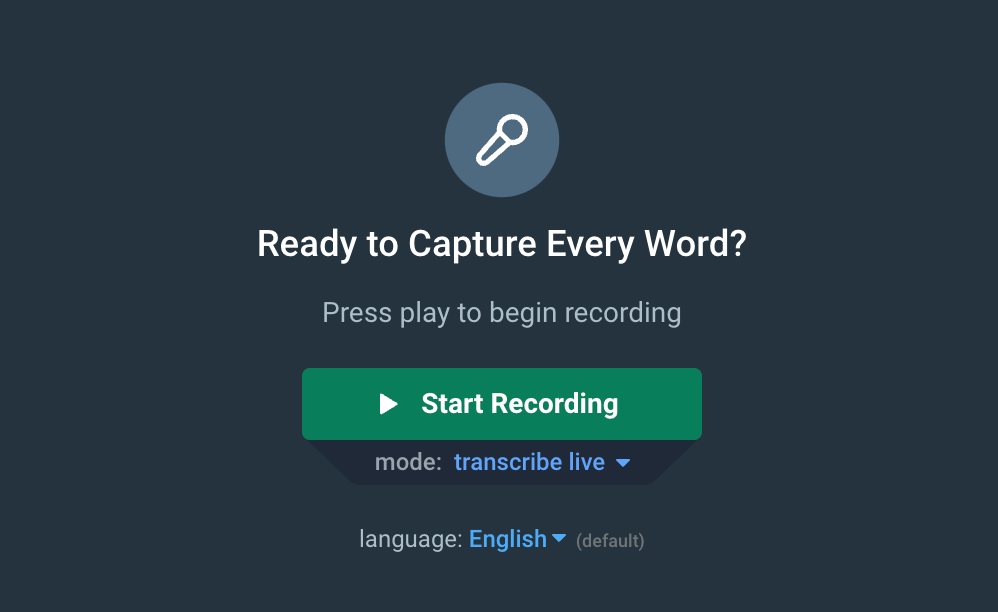
 When you begin your next transcription, Tails will automatically use your newly selected microphone
 ## Need Help?
Our support team is ready to assist you with your license transfer request or
answer any questions you might have about the process.
## Need Help?
Our support team is ready to assist you with your license transfer request or
answer any questions you might have about the process.